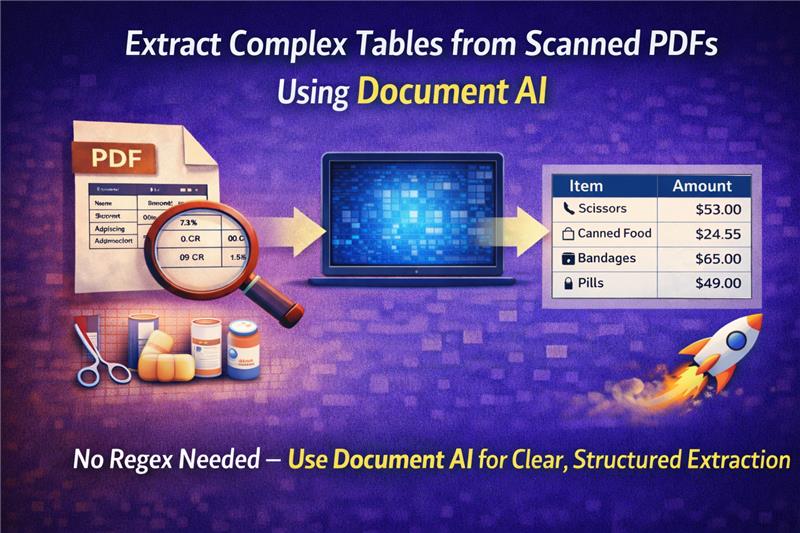
Extracting a table with multiple pages from a scanned PDF with poor quality can be a very challenging task. Most people begin with an OCR (Optical Character Recognition) software. OCR software translates the image into text, but the output is usually unstructured and disorganized. It usually provides a huge chunk of plain text without proper rows and columns.
Next, programmers attempt to use Regex (regular expressions) to detect the columns and extract the data properly. This is a time-consuming and unreliable process. Even a slight modification in the document structure can cause the whole script to fail.
The Document AI technology has enhanced this procedure. Rather than developing complex Regex expressions, you can now use natural language prompts to extract tables directly into structured JSON format. This enhances document data extraction, making it faster, more accurate, and easier to integrate with business systems such as CRM or ERP systems.
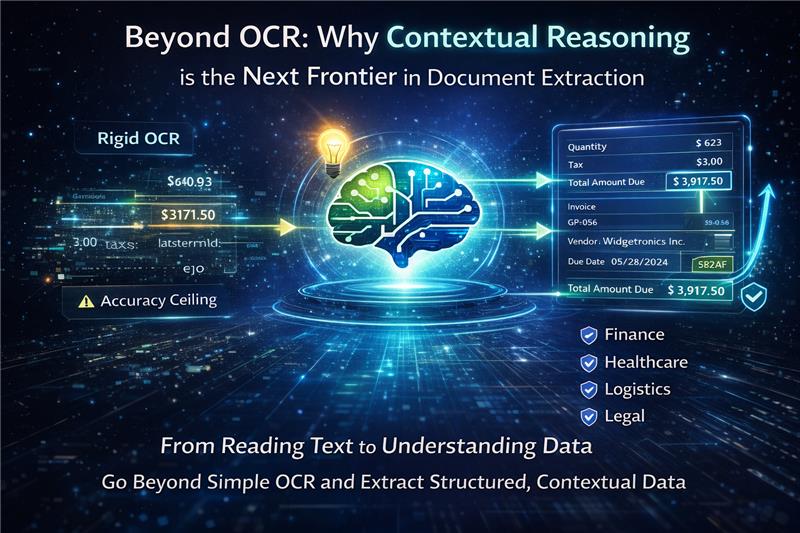
Traditionally, businesses struggle heavily with document processing and unstructured information. The standard workflow usually involves passing an image through an OCR engine. However, teams quickly hit the "OCR Accuracy Ceiling". This results in:
- Inconsistent data extracted from complex formats
- Inaccurate outputs that require endless manual correction
- Unusable results for automated workflows
When you rely solely on OCR, you run into "The Missing Brain" problem. Systems might "read" the characters, but they do not "understand" them. Because the system lacks contextual reasoning, it misses critical relationships and insights.
Example: If a table has a multi-line description in one column and a single price in the next, standard OCR simply outputs lines of text from left to right. To fix this, developers write complex Regex patterns to find dollar signs or date formats to realign the data.
This creates the "Data Transformation Puzzle," where a rigid, one-size-fits-all output requires intensive manual structuring to fit into your applications. It is a constant drain on resources and leads to significant financial loss due to manual data entry and error correction.
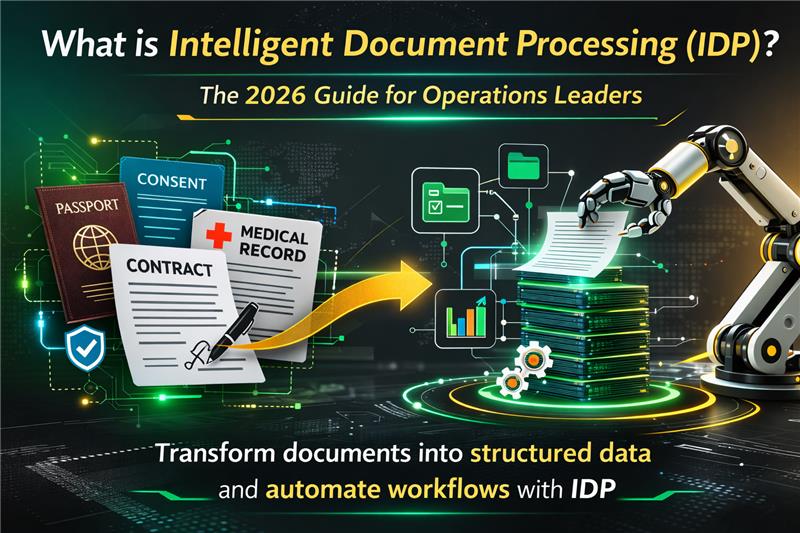
DocuProx, presented by Xccelerance Technologies, is designed to solve this exact problem. The core mission of the platform is to turn your documents into structured data, instantly.
Instead of relying on legacy OCR paired with rigid scripts, the DocuProx architecture utilizes a Multimodal / Vision Large Language Model (LLM). This means the system processes the document visually and contextually, much like a human would. When it looks at a table, it:
- Recognizes the grid structure
- Understands which headers apply to which columns
- Correctly associates multi-line rows, even if the scan is crooked or contains handwritten notes
One of the most powerful features of modern extraction is the ability to bypass traditional template setups entirely. Historically, extracting data meant drawing bounding boxes over a "reference" document to teach the system where to look. But documents vary. Vendors change their invoice layouts, and patients fill out intake forms differently.
With DocuProx, you can create a new extraction template by manually defining the structure without a reference document. Instead of drawing boxes, you define your required output using an intuitive, inline JSON schema. You simply tell the AI what you want, and it provides the extracted data in JSON format.
How it works:
- Provide the document file (as an image, PDF, or base64 format)
- Specify your defined template ID
- The API does the heavy lifting, returning a structured JSON response in real-time
Let us walk through exactly how you can extract a complex table—like a list of line items on a commercial invoice—using an inline JSON prompt.
Scenario: You have a scanned invoice containing a table with the following columns:
- Item Code
- Description (which spans multiple lines)
- Quantity
- Unit Price
- Total
Instead of writing a script to parse the OCR output, you construct a JSON schema that acts as an instruction manual for the Vision LLM:
{
  "invoice_line_items": {
    "type": "array",
    "description": "Extract all rows from the main itemized table in the invoice. Ignore the header row and any subtotal rows at the bottom.",
    "items": {
      "type": "object",
      "properties": {
        "item_code": {
          "type": "string",
          "description": "The alphanumeric product or item code."
        },
        "item_description": {
          "type": "string",
          "description": "The full description of the item. Combine multiple lines into a single string if the description wraps across rows."
        },
        "quantity": {
          "type": "number",
          "description": "The number of units purchased."
        },
        "unit_price": {
          "type": "number",
          "description": "The cost per single unit, excluding currency symbols."
        },
        "line_total": {
          "type": "number",
          "description": "The total cost for this specific line item."
        }
      }
    }
  }
}
By adding a description field to your JSON properties, you are prompting the AI. When you tell it to "Combine multiple lines into a single string," the Vision LLM uses its visual reasoning to group the wrapped text properly—a task that is notoriously difficult for standard OCR.
By declaring "type": "number" for the pricing fields, the AI automatically cleans the data:
- Strips out rogue commas
- Removes currency symbols
- Eliminates OCR artifacts
- Returns pure numerical values
The "type": "array" declaration forces the engine to loop through the visual table and output a perfectly formatted JSON array containing discrete objects for each row.
When you send this schema along with your scanned image via the DocuProx API, you eliminate the endless copy-paste loops. The API returns a ready-to-use, structured JSON payload that can be directly ingested into:
- Your database
- ERP systems
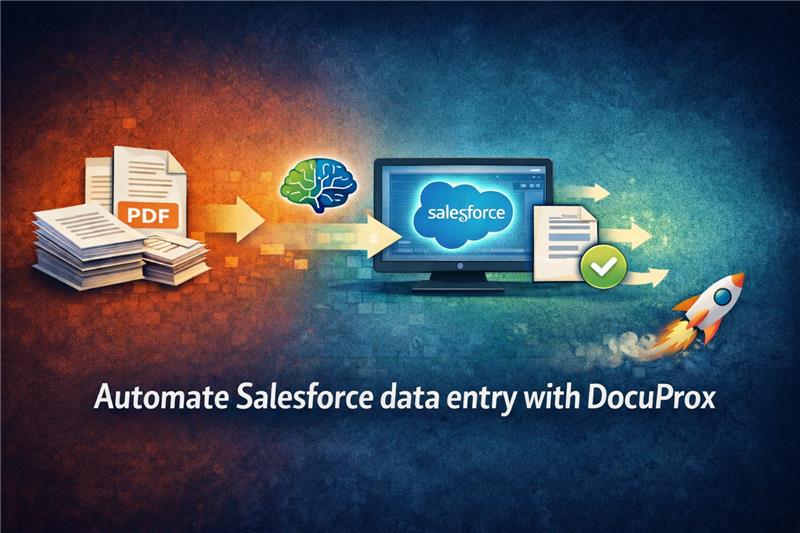
- Salesforce environment
- Any other business application
No intermediary transformation code required.
The extraction of complex tables from unstructured images is no longer a task that requires sophisticated regular expressions (Regex) or takes hours to correct errors in Optical Character Recognition (OCR).
With a Multimodal LLM, you can simply:
- Describe what you want to extract using natural language prompts
- Receive the output in structured JSON format
- Integrate directly into your business workflows
The new and improved Document AI solution is robust and doesn't break down when dealing with:
- Varied document structures
- Tilted scans
- Complex tables
This enhances document data extraction and enables accurate workflow automation for business processes.
Have questions about getting started with DocuProx? Feel free to reach out to our team at team@docuprox.com or visit docuprox.com to learn more.